Getting ready for Next-Generation Notifications

Logo: WorldShare Management Services

We're upgrading how your library connects with patrons through Next-Generation Notifications—a more flexible and customizable messaging system for WorldShare Management Services (WMS). Your existing notifications will continue working through June 28, 2027 while you transition at your own pace. Below you'll find everything you need to get started.

What do I need to do?

1

Take the self-paced training

This interactive course shows you how to configure general settings, create and customize templates, and apply templates to policies.
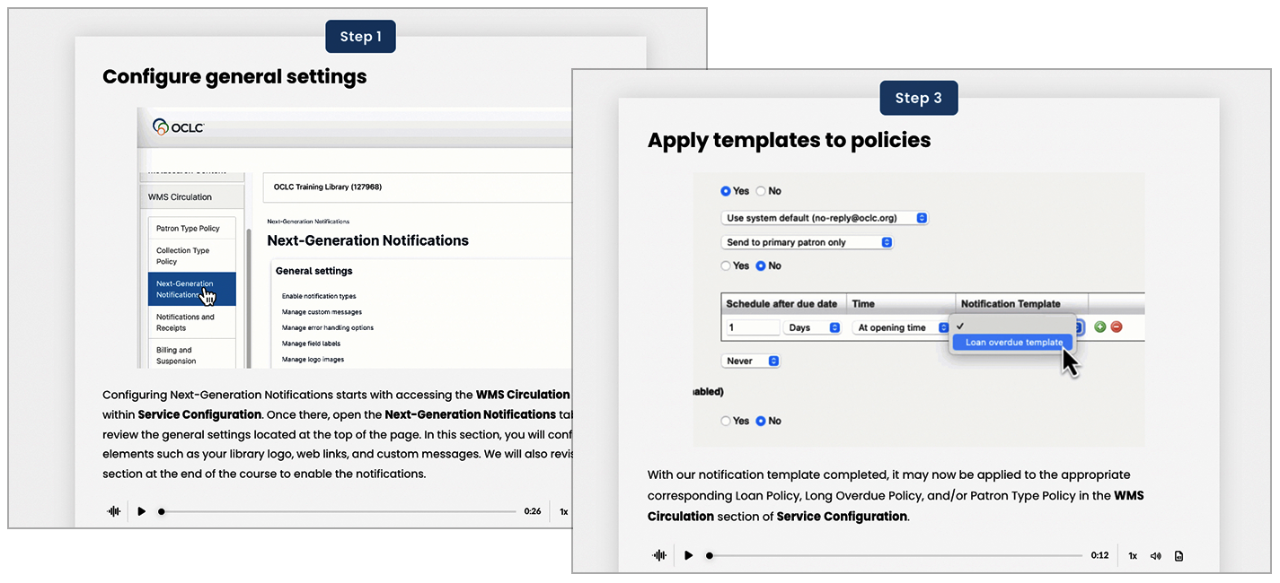
Take the training

Illustration: Self-paced training

2

Use our help resources

Our support documentation for Next-Generation Notifications includes:

Overview
A high-level look at each step libraries need to take to transition to NGNs smoothly. The Available Next Generation Notification Templates section shows which legacy templates are replaced with which NGN templates.

General settings
Guides for NGN general settings, such as managing reply-to addresses, web links, logos, and labels.

Templates
Guides for each NGN template type, such as loans, holds, patron, and POS notifications.

3

Ask your peers

Start a conversation in the OCLC Community Center, the place where members go to ask one another for advice and support.

Go to Community Center

4

Ask OCLC Support

If you get stuck, you can always talk to us. We're ready to help!

Contact us

Frequently Asked Questions


What are Next-Generation Notifications?

Developed as a direct response to your valuable feedback, Next-Generation Notifications help your library communicate with patrons by delivering the right message, in the right format, at the right time. This highly configurable system enables personalized communications that reflect your library’s unique identity and service model—and comes to you at no additional cost.

  • Graphical layout supporting images and links
  • Flexibility in scheduling and triggering notifications
  • Customizable data fields to include in messages
  • Multi-channel delivery (email, SMS, and MMS)
  • Support for printing and resending notices
  • Comprehensive notification history
  • Copying templates to create new notices quickly and easily
What are the new elements of these notifications?

These new notifications allow for the ability to include logos, web links, and custom messages in your notifications to customers. You are also able to customize the data elements you wish to include in a template. Additionally, you have control over notifications’ frequency and timing.

What is my deadline for setting up Next-Generation Notifications?

The Next-Generation Notifications project is designed with customer-driven flexibility in mind. Legacy notifications will remain active until Monday, June 28, 2027, giving libraries over one year to decide how and when to fully transition to the new system.

  • Try them ASAP: Begin creating and activating new notifications as they become available in small groups over the coming months.
  • Set up at your pace, enable later: Configure the new notifications as they are released, but wait to enable them for patrons until the complete set is available and configured.
  • Wait and switch all at once: Hold off until all notifications are released, then set up and activate everything in one go.

Once your library enables the new notifications, the corresponding legacy notifications will automatically be turned off. All Next-Generation Notifications follow the same general setup procedure—so after configuring a few, the process becomes quicker and more streamlined for additional notifications.

If no action is taken to set up next-generation notifications, patrons will stop receiving notifications from your library on June 28, 2027, with the decommission of legacy notifications.

What should my library be doing now?
  • Monitor release notes: Stay informed about which NGNs have been released and upcoming features by reviewing release notes with each update.
  • Make an implementation plan: Collaborate with library staff to discuss template designs, notification types, policies, and your preferred timeline for implementation. Most notification types (such as loans, holds, and account notifications) are already ready to use, with all remaining NGNs becoming available by the end of summer 2026. Semester breaks can offer a convenient window for planning.
  • Plan for staff time: Consider assigning the NGN transition as a project to one or a few staff members who can become experts, share knowledge, and lead staff discussions. Note that it can take up to 40 hours to complete all of the necessary tasks to transition to NGNs.
  • Start when you’re ready: Begin configuring and setting up notifications at your convenience—you don’t need to start immediately.
When I get started, what are some tips and tricks for streamlining this process?
  • Name templates clearly: Think about what to name each template so that when you assign a template to a notification type on the policy screen, it is clear which template to choose from the pull-down list. For example, you might name Loan Due Date Reminders “LDDR – Undergraduates,” “LDDR – Graduates,” “LDDR – Faculty,” and “LDDR – Staff.” You will then find these templates listed together, alphabetically, on the template list and it will be clear which template to assign to which policy on the policy pages.
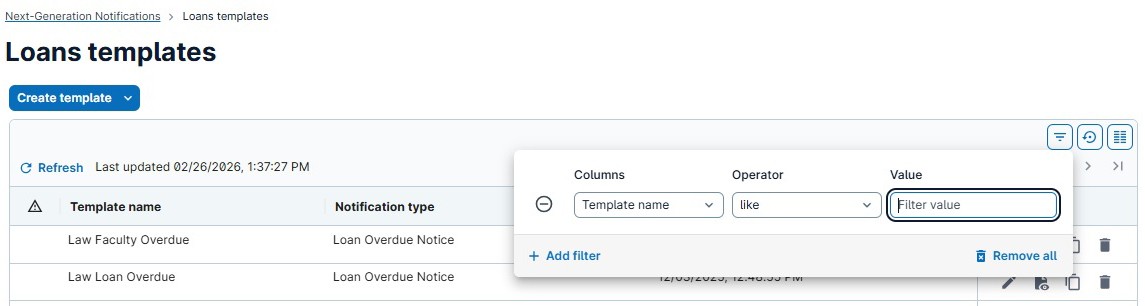
  • Use template filtering: The list of templates can be filtered by notification type, making it easier to find and work with them:

Screenshot: Filtering the list of templates

  • Use the template copy feature: Once a Next-Generation Notification template is configured, you can make a copy of it to speed up the creation of additional templates of the same type.
When do new notifications start sending?

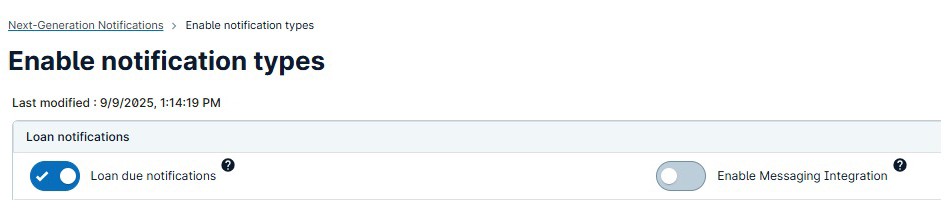
When you are ready to switch a type of notification from legacy to NGN, you can toggle it on at the Enable notification types screen.

Screenshot: Enable notification types screen

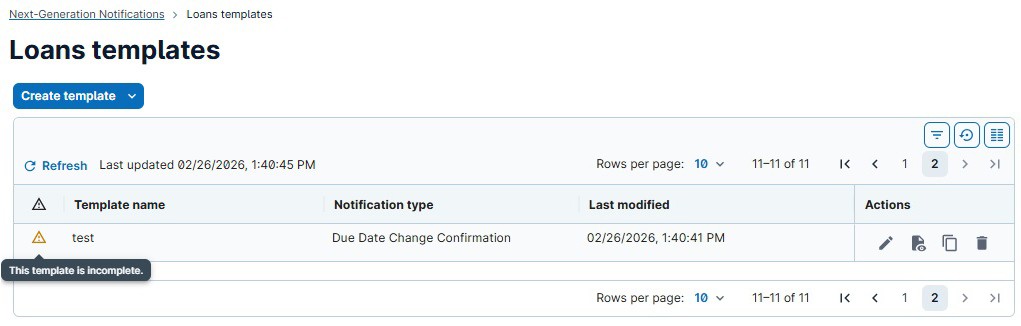
It is important to be sure that all templates in the notification type you are turning on are complete. Notifications will not send if there are incomplete templates. To be complete, a template needs to have all required sections filled out. For example, for loan notifications, this includes the Template Name, Subject, and Loan Details. If a template is not complete, you will see an incomplete indicator to the left of the template name on the template list.

Screenshot: Template incomplete indicator

When do legacy notifications stop sending?

As you enable each new type of notification, the legacy notifications for that type will be automatically turned off.

When NGNs are enabled, what happens when a patron has already received some legacy notifications for an item?

New notifications will be scheduled on a Go Forward basis. If a newly scheduled notification date in a series falls in the past at the time of enabling notifications, that notification will not send. All scheduled notifications with dates in the future will send once they are enabled. In other words, new notifications will start going out as timed from the day of the switch, forward. Example: For both legacy notifications and NGNs, a library has three overdue notifications scheduled: 1) immediately, 2) three days overdue, 3) one week overdue. The library switches to NGNs for overdue notices when a patron has had an item overdue for two days. The patron will receive only NGN notifications #2 and #3.

What if I want to make changes to a notification configuration after it has been completely configured and enabled?

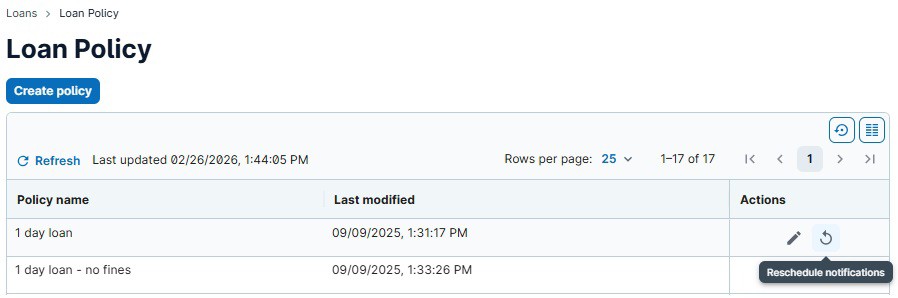
You can make changes to the configuration of a notification at any time on the policy pages. Be sure to Save the Policy page after making your changes and then from the Policy page list, click on the Reschedule button to make sure all changes to the notification configuration are adopted from this point forward.

Screenshot: Policy page reschedule button

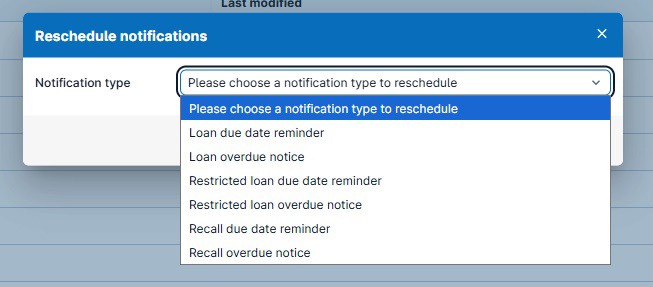
After clicking the Reschedule button, choose the notification type from the drop-down list:

Screenshot: Choose notification type

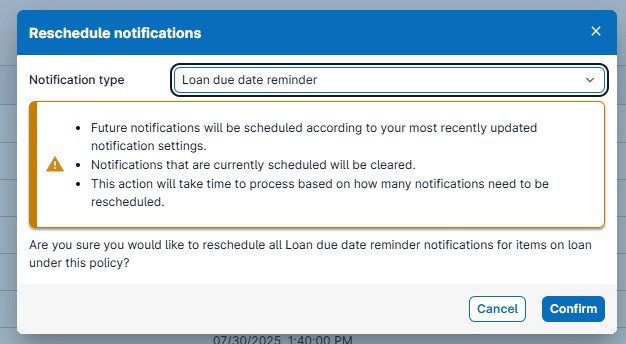
Then, Confirm the changes:

Screenshot: Confirm changes

Go through this process after you have made any kind of change to your notification configuration.

Can I send notifications through text messaging instead of through email and print?

Yes, our text message notification integration automatically generates text message notification files to your library’s file exchange in CSV format. To prevent unnecessary buildup of files, we recommend that you do not enable the Messaging Integration until you have a solution in place with your messaging provider.

Text message notifications can only be used once the email/print notifications have been configured and enabled for a notification type. Since text messages are often limited in the amount of characters that can be used, the email/print notifications will always be the notifications that allow for the most complete information, and therefore, used as the primary source of communication. Text messaging will serve as a helpful reminder to patrons about the status of their loans, however, it will not be required to utilize text messaging.

How do I send text messages?

You will need to link text messages from a third-party messaging service provider. Instructions on how to link text messaging can be found here.