

Organize your materials with the world's most widely used library classification system.
Organize your collection
Libraries big and small the world over use the Dewey Decimal Classification® (DDC) system to help make sense of today's complex library collections.
OCLC releases Dewey linked data
We’re unlocking the power of the DDC to build an increasingly robust linked data infrastructure by creating uniform resource identifiers (URIs) for Dewey numbers. As the foundation for our “concept” entities, this Dewey linked data provides subject classifications to Works entities in WorldCat Entities, creating a layer of new relationships for knowledge graphs that power discovery.
These identifiers make the Dewey classification numbers more meaningful, create connections between broad classification numbers and specific subject topics, and provide multi-language labels for otherwise opaque numbers. Using machine-actionable and web-friendly URIs, Dewey linked data connects across established classifications and subject headings data. For example, the OCLC Research team mapped Dewey classifications to FAST (Faceted Application of Subject Terminology) topical headings, enabling relationships to the Dewey linked data.
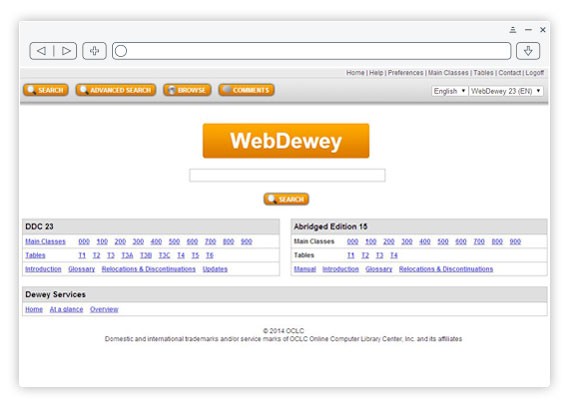
Anyone is free to view and access a base set of Dewey linked data and can begin integrating Dewey URIs into their local data management and discovery systems today. Libraries that subscribe to WebDewey have access to the full range of Dewey linked data by signing in with their WebDewey credentials, as well as two new APIs that enable them to easily integrate Dewey linked data into other systems and services.
Break down language barriers
The DDC system has been translated into numerous languages and serves library users worldwide making it the world's most widely used library classification system.


Get timely updates
Get updates to the DDC through continual updates to the WebDewey service. The Dewey editorial team continually identifies new trends in published topics to include in the DDC to make it work better for you and your library. Email [email protected] with your Dewey questions and concerns.
Minimize volunteer and staff training time
Many libraries rely on volunteers and temporary staff to manage day-to-day tasks such as re-shelving books. The DDC's simple, number-based format makes it easy for these helpers to know exactly where a book should fit on the shelf. They can re-shelve books quickly and have confidence they're doing it correctly.


Help patrons feel more comfortable in the library
Non-regular library users can be intimidated by the rows and rows of shelves, searching the catalog, and even asking a librarian for help. With its subject-based classification system, the DDC encourages patrons to independently browse the catalog, the stacks, and even your programming schedule to find what they need. Once they find the topic area they want, patrons can comfortably browse the items to get a better understanding of your collection.
Learn more about the DDC
The Dewey Decimal Classification (DDC) system has a rich history and we have a lot of materials that can help you explore the DDC itself, Melvil Dewey and more.

"Delaware Libraries use the Dewey Decimal Classification system as a match point across all library services—including reference, programs, and circulation—to get a sense of how Delawareans are using libraries and what they are trying to accomplish."
Annie Norman
State Librarian/Director
Delaware Division of Libraries
Delaware, United States
Request more information about Dewey Services
The Dewey Decimal Classification (DDC) system is the world’s most widely used way to organize library collections. The DDC constantly updates to enable better discovery across any topic in multiple languages. Because the DDC is easy to use, you can increase the visibility of your materials quickly and efficiently.
Service availability
-
Available everywhere
Learn more

Download the Dewey Services brochure
Download the brochure (US Letter)
Download the brochure (A4)
Upcoming events
Watch this space for more upcoming webinars
On-demand webinars
Watch this space for past and recorded Dewey Services events.
Recent news
The Dewey Services board is a great source for news and views on classification issues as well as tips on DDC usage. It's also a convenient way to share feedback directly to the DDC editors to help shape the future of the DDC.
All copyright rights in the Dewey Decimal Classification system are owned by OCLC, Inc. Dewey, Dewey Decimal Classification, OCLC and WebDewey are registered trademarks of OCLC, Inc.